Search our blog!

Monday, November 30, 2009

Monitor Battery Voltages and Temperatures with the NetGuardian 216

Monitor battery voltage and temperature with the NetGuardian 216


How This Application Works:

Equipment Used:

NetGuardian 216

Temperature Sensor

Battery


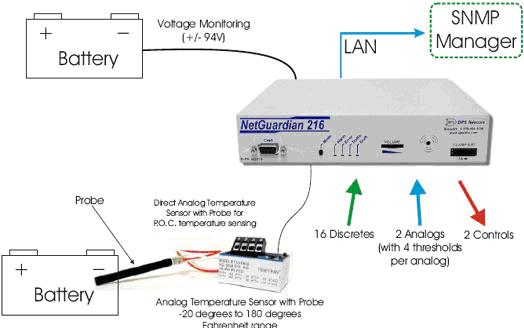
This application features a single NetGuardian 216 along with the Temperature Sensor with Probe. The NetGuardian 216 will use the Temperature Sensor with Probe to monitor your large scale batteries. It will be able to report alarms via SNMP over IP to your SNMP Manager.

The NetGuardian 216 comes equipped with 16 discrete alarm inputs, 2 analog alarm inputs, and 2 control relay outputs. The discrete alarms are items such as door alarms, equipment alarms and other ON/OFF events. The discrete alarms are "software reversible" to support both N/O and N/C alarm wiring. The

NetGuardian 216's 2 analog inputs can be used for measuring such critical events as temperature, voltage and battery. We also have a line of sensors which can be used with the NetGuardian 832A and can be included upon your request.

The NetGuardian 216 will provide complete coverage and control of your smaller remote sites with easy installation and configuration. It can report alarms via SNMP to any SNMP manager, or DCPx over either UDP or TCP to the T/Mon (DPS Master Station). The reachthrough serial port on the NG216 provides you the ability to access a remote serial device via LAN (a.k.a. terminal server). The

NetGuardian 216 also features a realtime clock, so the NetGuardian 216 clock maintains the current date and time during a power failure. Each time an alarm occurs, a time-date stamp will be included in the SNMP/DCPx trap. Also, the NetGuardian 216 comes a with a free, easy to use, Windows based (T/NG216) utility for configuration, monitoring and diagnostic functions.


Monday, September 28, 2009

How to make a Bootable USB

Make a Bootable USB


A Bootable USB: Utility to Create Bootable USB Drive to Install Windows Vista, Server 2008 and 7
Imagine a situation where you need to install Windows Vista or 7 in a system but you don't have access to DVD drive. We all know Windows Vista, Server 2008 or 7 comes in DVDs and you'll need a DVD drive to install them. Then how will you install them? The solution is, you can create a bootable USB drive which can be used to install Windows without using DVD drive.

I have posted a detailed tutorial to create such bootable USB drive long time back, you can read about it here.

The above method is very easy to follow but wouldn't it be great if we can use a utility to do the whole task automatically? Our reader "Aris" has created a small utility exclusively for AskVG readers which creates a bootable USB drive to install Windows Vista, Server 2008 or 7.

Prerequisites:
A USB Drive (4 GB or more)
Windows Vista, Server 2008 or 7 ISO image or DVD
Host OS: Windows Vista (SP1 or SP2), Server 2008 or 7

How to Use:

Once you meet the requirements, run the utility. Its a portable utility so doesn't need installation. Simply run it and check the option "I have read and accepted the following License Agreement". Now click on OK button and it'll launch the main application.


It also shows a Help window so that you can use the utility easily. The utility requires only 4 easy steps to follow:

1. Check USB drive (To check whether your USB drive is attached or not)
2. Format USB drive
3. Choose DVD or ISO image (To A Bootable USB: Utility to Create Bootable USB Drive to Install Windows Vista, Server 2008 and 7
Imagine a situation where you need to install Windows Vista or 7 in a system but you don't have access to DVD drive. We all know Windows Vista, Server 2008 or 7 comes in DVDs and you'll need a DVD drive to install them. Then how will you install them? The solution is, you can create a bootable USB drive which can be used to install Windows without using DVD drive.

I have posted a detailed tutorial to create such bootable USB drive long time back, you can read about it here.

The above method is very easy to follow but wouldn't it be great if we can use autility to do the whole task automatically? Our reader "Aris" has created a small utility exclusively for AskVG readers which creates a bootable USB drive to install Windows Vista, Server 2008 or 7.

Prerequisites:
A USB Drive (4 GB or more)
Windows Vista, Server 2008 or 7 ISO image or DVD
Host OS: Windows Vista (SP1 or SP2), Server 2008 or 7

How to Use:

Once you meet the requirements, run the utility. Its a portable utility so doesn't need installation. Simply run it and check the option "I have read and accepted the copy the required files to USB drive)
4. Start the process to create bootable USB drive